
 Call us at (877) 892-8249
Your router probably came with default settings designed to make setup easy, not to keep anyone out. Most people plug it in, connect their devices, and never touch it again. That is a reasonable thing to do. It is also how home networks end up with weak passwords, outdated firmware, and settings that make life easier for anyone trying to get in.
The good news is that fixing it does not require a networking degree. In about ten minutes, using your router's app or browser-based admin page, you can work through the settings that actually matter. Menu names vary depending on your internet provider and router manufacturer, but the core options are the same across almost every device.
This guide walks through each change in order, explains why each one matters, and covers how to tell when a router is too old to secure properly. Router security is one layer of protecting your digital footprint across devices, accounts, and personal information. If exposure does occur, OmniWatch provides identity theft monitoring and restoration services to help you respond1.

What you need to do before securing your home Wi-Fi
Find your router app or administration address
Check the sticker on your router for the administration address, or look for your internet provider's official app. Many routers use a local address listed as the device's "router" or "default gateway" in your phone or computer's network settings. Do not assume the same address works for every brand. Make all changes while connected to your home network rather than through an untrusted public connection.
Save the current network details
Before changing anything, write down your current Wi-Fi network name and password. If your router offers a configuration backup or export option, use it. Having a record makes it easier to reconnect devices or roll back if something goes wrong.
Know what may take longer than 10 minutes
The configuration steps themselves are quick, but firmware downloads, router restarts, and reconnecting phones, televisions, cameras, smart speakers, and other devices can extend the total elapsed time beyond ten minutes.
How to secure your home Wi-Fi quickly and efficiently
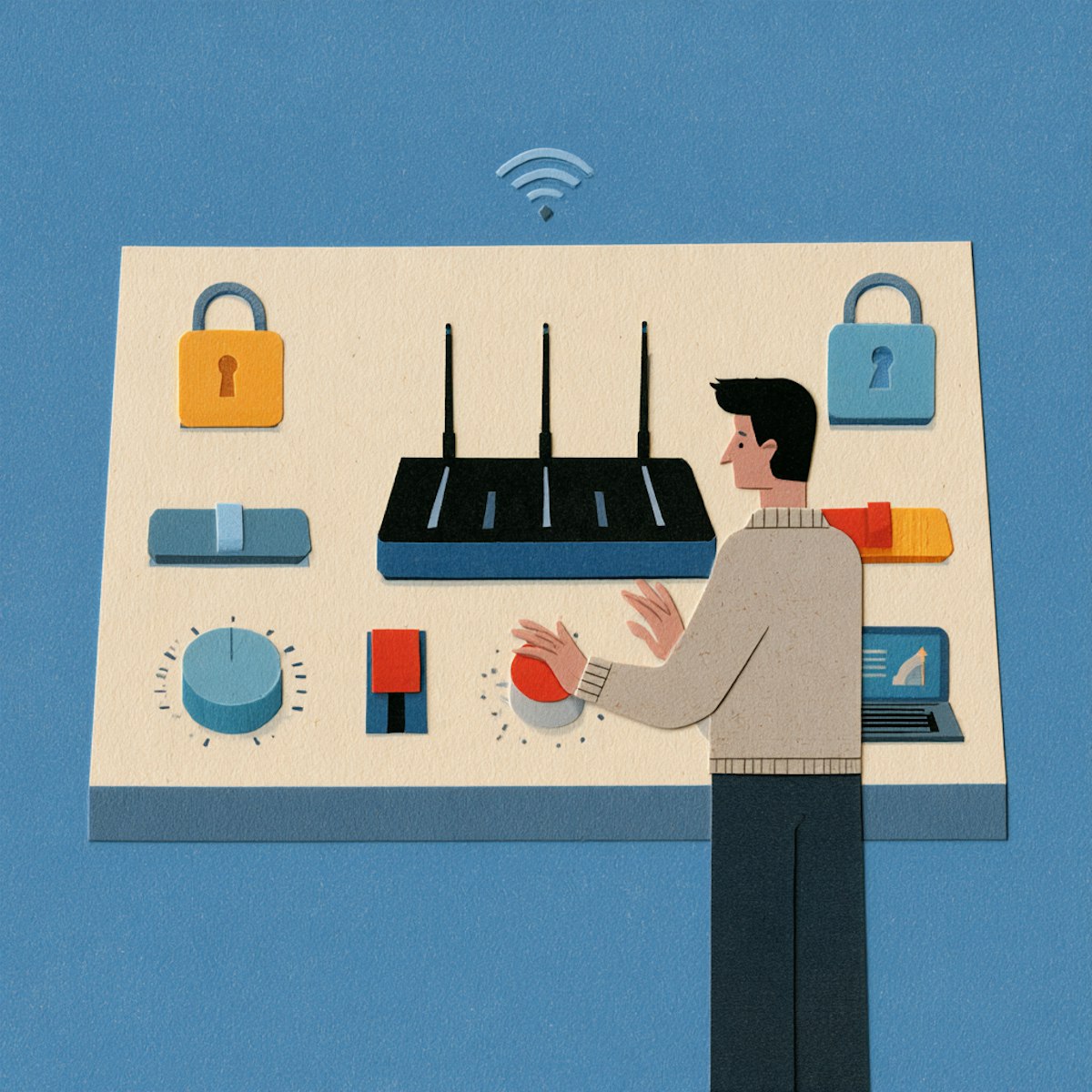
Follow these eight steps in order.
1. Sign in to the router settings
Open your router's official app or type the administration address into a browser. The router administrator login is separate from your Wi-Fi password,it controls the settings page itself. If the default credentials printed on the label do not work, contact the manufacturer or your internet provider rather than repeatedly guessing or downloading credentials from unofficial sites.
2. Install the latest router firmware
Install any available firmware update and enable automatic security updates if the router offers that option.
Firmware updates correct known security weaknesses and sometimes add support for newer encryption standards. Look for an "Update," "Firmware," or "Software" section in the settings. The download and restart may take several minutes on their own, but the active setup is brief. Always obtain firmware through the router's built-in update tool, the manufacturer's website, or your internet provider.
3. Change the router administrator password
Replace the default or reused administrator password with a long, unique alternative. Store it in a reputable password manager so you do not need to memorize it. If the router lets you change the administrator username, doing so adds a small extra barrier, but a strong unique password matters far more. Do not reuse your Wi-Fi password as the administrator password.
4. Select WPA3 or WPA2-AES encryption
Choose WPA3-Personal if all household devices support it. If they do not, use WPA2-Personal with AES (Advanced Encryption Standard) or a WPA2/WPA3 transition mode while replacing incompatible devices2.
Avoid WEP, original WPA, and TKIP;these are outdated and offer limited protection. A mixed or transition mode can improve compatibility, but the actual security depends on what each connected device negotiates. If only obsolete encryption options are available, the router should be replaced or upgraded through your internet provider. The Wi-Fi Alliance's WPA3 specification details the improvements over earlier standards.
5. Create a long, unique Wi-Fi password
Use a long passphrase that is not reused for any other account or network. Avoid addresses, surnames, phone numbers, and predictable phrases. A passphrase of several unrelated words is both strong and easier to type on a smart TV remote. After changing the password, you will need to reconnect each device. Share guest access rather than giving visitors your main password.
6. Disable WPS and unnecessary remote administration
Turn off Wi-Fi Protected Setup (WPS) and internet-facing remote administration unless you have a specific, well-understood reason to use them.
WPS may appear as "Wi-Fi Protected Setup," "push-button setup," or "PIN setup." Remote administration might be labeled "remote management," "web access from WAN," or "cloud management." If a setting appears to be controlled by your internet provider, confirm its purpose with the provider before disabling it. Universal Plug and Play (UPnP) can also expand device access automatically; if you do not need it, consider disabling it, but note that this may affect gaming, media streaming, or smart-home functions.
7. Turn on a guest network for visitors and smart devices
Enable the guest network for visitors so they never need your main password. If the router supports network isolation, consider placing less-trusted smart-home or Internet of Things devices on a separate guest or IoT network. Verify that guest devices cannot access the router settings or other household devices. Not every "guest network" automatically isolates connected devices, so check the setting to make sure
8. Review connected devices and save the settings
Check the router's connected-device list, remove or block devices you do not recognize, save the settings, and restart only if prompted.
Device names can be vague or outdated. Before treating an entry as an intruder, compare it with televisions, speakers, cameras, appliances, game consoles, and old phones in your home. If you confirm unauthorized access, change the Wi-Fi password immediately because simply blocking a single device does not reveal how it obtained the password.
Which home Wi-Fi security settings matter most?
Setting | Recommended choice | Avoid |
|---|---|---|
Wireless encryption | WPA3-Personal; otherwise WPA2-Personal with AES | WEP, original WPA, TKIP |
Router admin password | Long, unique, and different from the Wi-Fi password | Default or reused credentials |
Firmware | Current; automatic updates enabled when available | Unsupported or unpatched firmware |
WPS | Off unless specifically needed | Leaving PIN-based WPS enabled |
Remote administration | Off unless deliberately configured and required | Unnecessary internet-facing access |
Guest/IoT access | Separate network with isolation when supported | Giving every device access to the main network |
DNS | Provider default or a trusted service chosen knowingly | Treating a DNS change as a substitute for router security |
How to tell whether someone is using your Wi-Fi
Signs that deserve investigation
Devices appearing in the router list that cannot be matched to anything in your household.
Router settings or passwords changing without your input.
Repeated browser redirects or altered network settings.
Security alerts from the router or internet provider.
What to do if you find an unfamiliar device
Identify all household and smart-home devices by name and type.
Block or pause the unexplained device if the router permits it.
Change the main Wi-Fi password.
Change the router administrator password.
Update firmware and confirm the encryption setting.
Reconnect only trusted devices.
If settings appear altered or access cannot be restored, perform a factory reset and contact your provider or manufacturer. Note that a factory reset erases all custom settings.
Is hiding your Wi-Fi name enough to secure the network?
No. Hiding the network name, also called disabling Service Set Identifier (SSID) broadcast, does not replace strong encryption, current firmware, or unique passwords.
Technical users and widely available scanning tools can still detect a hidden network. Treat SSID hiding as an optional preference, not a core security control.
MAC filtering can also add administrative friction, but it is not a strong primary defense because device addresses can be observed or imitated.
Many existing guides overstate both settings. Neither replaces WPA3 or WPA2-AES encryption.
What if your router is old or does not support WPA2-AES or WPA3?
Check the manufacturer's support page for the last available firmware and whether the device still receives security patches. A router that no longer receives updates should be considered for replacement. If you rent equipment from your provider, ask whether a supported replacement is available at no additional cost. Compatibility with very old household devices should not force the entire network onto obsolete security indefinitely.Isolate or replace those devices where practical.
Does securing Wi-Fi protect personal information that was already exposed?
Securing the router reduces future network risk, but it cannot recover credentials, Social Security numbers, or other personal information that may already have been exposed.
A secure router protects the local network, but sensitive information sent by email may require separate account and message-security precautions.
Securing your router can reduce future risk, but it cannot undo an earlier exposure of personal information.
Stay safe with identity theft protection
OmniWatch provides dark web and Social Security number monitoring, identity theft protection with up to $4 million in identity theft insurance,* and restoration support to help resolve identity theft.
Identity Theft ProtectionHome Wi-Fi security checklist

Router firmware is current.
Automatic updates are enabled if available.
Default router administrator credentials have been replaced.
The administrator and Wi-Fi passwords are different.
WPA3-Personal or WPA2-Personal with AES is active.
WEP, original WPA, and TKIP are not in use.
WPS is disabled.
Unnecessary remote administration is disabled.
Guests and suitable smart devices use a separate network.
The connected-device list has been reviewed.
The router is still supported by its manufacturer or provider.
The highest-priority actions are updating firmware, using current encryption, and replacing default or reused passwords. Complete those three and you have addressed the most common, preventable risks to a home Wi-Fi network.
Frequently Asked Questions
How do I secure my home Wi-Fi quickly?
Update the router firmware, replace the default administrator password, choose WPA3 or WPA2-AES, create a long and unique Wi-Fi password, disable WPS and unnecessary remote access, and review connected devices. Use a guest or isolated network for visitors and smart-home devices when supported. If you're concerned about exposed personal data, OmniWatch offers monitoring and restoration support to help you respond.
Is WPA2 still secure for home Wi-Fi?
WPA2-Personal with AES remains the appropriate fallback when WPA3 is unavailable or incompatible with household devices. Avoid WEP, original WPA, WPA2-TKIP, and any setting that uses obsolete encryption.
Should I use WPA2 or WPA3?
Use WPA3-Personal when the router and all essential devices support it. Otherwise, use WPA2-Personal with AES or a WPA2/WPA3 transition mode while upgrading incompatible devices.
How often should I change my home Wi-Fi password?
Change it immediately if it is default, reused, weak, widely shared, or may have been exposed. Routine changes are less important than using a long, unique password, keeping firmware current, and reviewing who has network access.
How do I know whether someone else is connected to my Wi-Fi?
Open the connected-device list in the router app or administration page and compare it with devices in your home. An unfamiliar label is not conclusive because routers may display phones, appliances, and smart devices under vague names.
Should I turn off WPS on my router?
Yes, disable WPS unless you have a specific need for it. Connecting devices with the normal Wi-Fi password avoids leaving WPS available unnecessarily.
Does hiding my Wi-Fi network make it secure?
No. A hidden network name can still be detected and does not replace WPA3 or WPA2-AES, current firmware, and strong passwords. Treat SSID hiding as an optional preference rather than a security control.

This guide is published by OmniWatch. Follow OmniWatch on Facebook for ongoing guidance on identity protection, digital safety, and scam awareness.
*Restrictions and exclusions apply, click here to read full details of insurance coverage.