
 Call us at (877) 892-8249
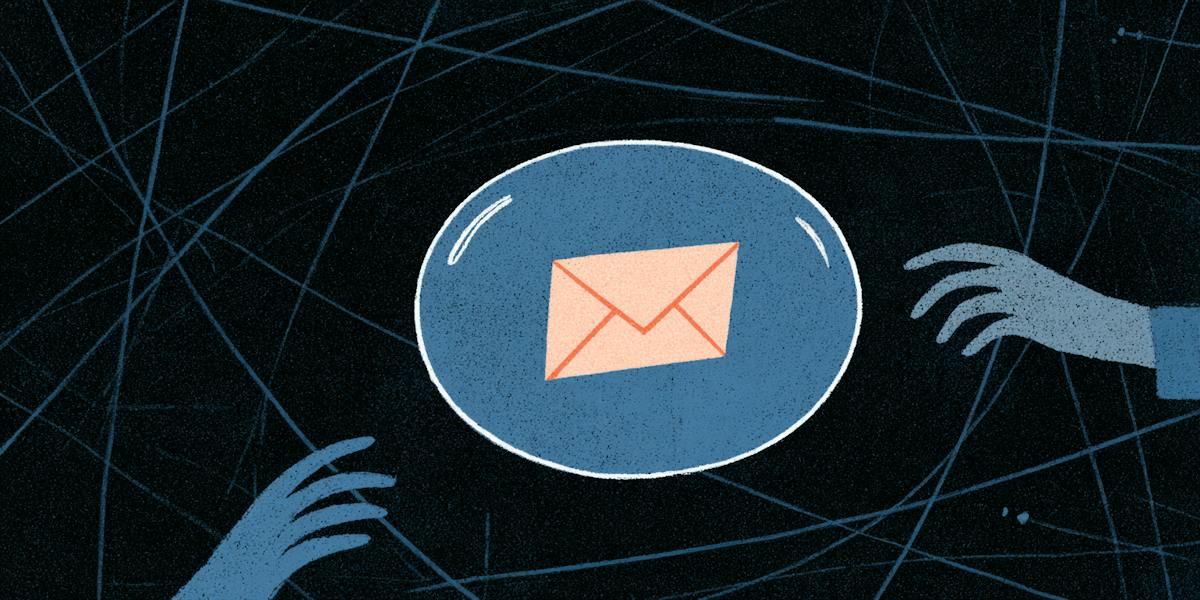
Sending a secure email is less about flipping a single switch and more about matching the right safeguards to the sensitivity of what you're sharing.
Most major email providers encrypt messages as they travel between servers, which is a good baseline. But it’s not the whole picture. That protection does not shield a message once it lands in someone's inbox, and it does nothing for a mistyped address that delivers your tax documents to a stranger. There is a real difference between transport encryption, provider-level access controls, and true end-to-end encryption, and that difference matters a great deal if you are regularly sending personal, financial, or medical information.
To send a secure email, start by deciding how sensitive the information actually is. For routine messages, use the recipient's verified address, enable multifactor authentication on your account, and rely on your provider's standard encrypted connection. For more sensitive messages, Gmail Confidential Mode and Outlook's encryption controls add a layer of protection, though neither is a complete solution. For Social Security numbers, financial records, medical documents, credentials, or anything else that could cause serious harm if intercepted, use an organization-approved secure portal or an end-to-end encrypted service instead of ordinary email.
Two things worth knowing before you start. Gmail Confidential Mode is not end-to-end encryption. Outlook's encryption options vary depending on your account type, subscription, organization, and administrator settings.
Key takeaways
- Verify the recipient and attachments before sending.
- Use Gmail Confidential Mode or Outlook's available encryption controls for added protection, while recognizing their limitations.
- Send attachment passwords through a separate channel, never in the same email.
- Use a trusted secure portal or approved end-to-end encrypted system for highly sensitive records.
- If personal or financial information was exposed, take immediate account and identity-protection steps.
- For detection and recovery help after exposure, OmniWatch provides AI-powered scam detection and identity-theft protection.
What it means to send a “secure” email
A secure email uses safeguards appropriate to the information and the risk. These may include encryption while the message is transmitted, encryption of its contents, access restrictions, recipient verification, and controls that reduce forwarding or downloading. No single email setting protects against every risk.
Security isn't binary. The right approach depends on the threat you're trying to address, such as:
Interception in transit
Unauthorized forwarding
A compromised account
A mistaken recipient
Data sitting indefinitely in an inbox
Encryption in transit vs. end-to-end encryption
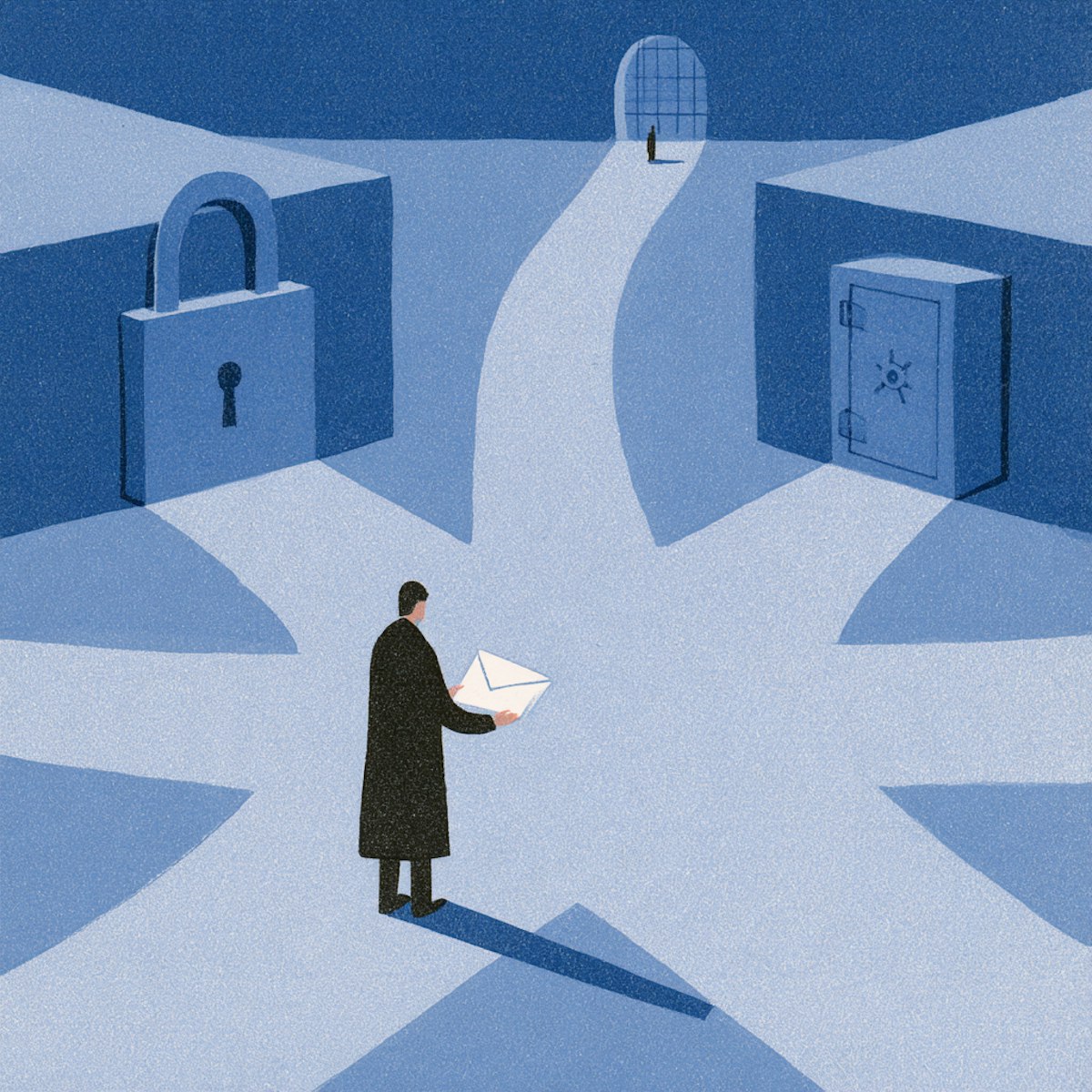
Encryption in transit (TLS) protects data while it moves between supported servers or devices. Most major providers, including Gmail and Outlook, use it by default when the receiving server supports it. A padlock icon or "encrypted connection" indicator in your email client typically signals this kind of protection.
End-to-end encryption is a stronger standard. It's designed so that only the sender and the intended recipient can decrypt the content; not the email provider, not an administrator, and not anyone who intercepts the message along the way.
This means that a message protected only by encryption in transit may still be readable in the recipient's inbox, accessible to the provider, or exposed if either account is compromised.
Access restrictions are not the same as encryption
Features like expiration dates, forwarding restrictions, download controls, and passcodes can reduce casual sharing. They make it harder for someone to quickly forward or save a message. But they should not be confused with encryption. A recipient can still photograph a screen, transcribe displayed information, or copy content manually. These controls add friction, not an impenetrable barrier.
What secure email cannot protect against
Even the strongest email security has blind spots. Knowing where the limits are is as important as knowing which settings to enable.
A mistyped or spoofed recipient address. Encryption does not help if the message goes to the wrong person. Always verify the address before sending anything sensitive.
A compromised sender or recipient account. If either inbox has been breached, message contents may be exposed regardless of how securely they were sent.
Malware or an unlocked device. A message is only as secure as the device displaying it. A keylogger or an unattended screen undermines everything else.
Screenshots or photos. No software setting can reliably prevent someone from photographing a screen or taking a screenshot before a message expires.
Social engineering. An attacker who convinces a recipient to share information bypasses every technical control entirely. The weakest point is usually human, not technical.
Information retained after delivery. Once a message has been read, the sender typically cannot control what the recipient does with its contents, regardless of expiry settings or access restrictions.
Stay safe with scam protection
Secure sending reduces risk, but it can’t undo every mistake. If personal or financial information is exposed, OmniWatch provides AI-powered scam detection, identity theft protection with restoration support, dark web and SSN monitoring, and plans with up to $4 million in identity theft insurance.
Scam ProtectionWhich secure sending method should you use?
The right method depends on what you're sending and what could go wrong. Use this table as a starting point:
Information or situation | Recommended approach | Why |
|---|---|---|
Routine, non-sensitive communication | Standard email with verified recipient and secure account settings | Usually sufficient for low-risk content |
Moderately sensitive document | Provider encryption controls or password-protected encrypted file | Adds an access barrier beyond the inbox |
Temporary access needed | Confidential or restricted-access feature, where available | May limit access duration or common sharing actions |
SSN, tax documents, medical records, financial records, credentials, or identity documents | Organization-approved secure portal or suitable end-to-end encrypted system | Ordinary inbox storage creates unnecessary exposure |
Recipient or domain appears suspicious | Do not send until independently verified | Encryption does not make a scammer trustworthy |
How to send a secure email in Gmail
In Gmail, the most accessible additional control is Confidential Mode, which can set an expiration date and can require a passcode. It's useful for limiting routine access, but it is not end-to-end encryption and should not be treated as the strongest option for highly sensitive data.
How to use Gmail Confidential Mode
Open Gmail and select Compose.
Add the intended recipient, subject, and message body.
Select the Confidential Mode icon (commonly shown as a lock with a clock) at the bottom of the compose window.
Choose an expiration period from the available options.
Choose the passcode setting if you want the recipient to verify access via SMS.
Save the settings.
Double-check the recipient address and any attachments.
Send the message.
What Gmail Confidential Mode does
Sets a message expiration date, after which the recipient can no longer open it.
Offers an optional SMS passcode, requiring the recipient to verify access.
Restricts common actions like forwarding, copying, printing, and downloading within the Gmail interface.
These are best understood as restrictions rather than guarantees.
What Gmail Confidential Mode does not do
It is not end-to-end encryption. Google can still access message content.
It cannot prevent screenshots, photos, or manual transcription of displayed information.
It does not verify that the person controlling the recipient's account is trustworthy or authorized.
It should not replace a required secure portal for regulated data such as medical records or tax documents.
How to send an encrypted email in Outlook
Outlook encryption controls depend on whether the sender uses Outlook.com, a Microsoft 365 work or school account, and which Outlook interface and administrator policies apply. If an Encrypt or Permissions control is unavailable, contact your organization's administrator or use its approved secure portal rather than sending sensitive information unprotected.
How to check for encryption in new Outlook or Outlook on the web
Start a new message.
Verify the recipient's complete email address by checking spelling and domain carefully.
Look under Options or the relevant message permissions menu in the toolbar.
Select Encrypt, Permissions, or the organization's designated protection option, if available.
Choose the appropriate restriction, such as encryption only or a do-not-forward policy, where offered.
Review the recipients, message content, and attachments one more time.
If the recipient hasn't received an encrypted message from you before, consider sending a brief test message first so they know what to expect.
How to find encryption controls in classic Outlook
In classic desktop versions of Outlook, encryption and permissions settings may appear under Options, Permissions, or Encrypt in the message toolbar. The exact location varies by account type, Outlook version, and organizational deployment. Don't assume one menu path is universal. If you can't find the control, your account or license may not support it.
What "Encrypt" and "Do Not Forward" may mean
Encrypt protects message content using Microsoft's applicable protection system (such as Microsoft Purview Message Encryption). External recipients may need to authenticate or use a one-time passcode to read the message.
Do Not Forward or restricted-permissions settings may limit the recipient's ability to forward, print, or copy the message within supported applications.
Neither setting provides absolute protection against photos, screenshots, or compromised devices.
Why the Outlook encryption button might be missing
Your account type doesn't support encryption features.
Your Microsoft 365 subscription or license doesn't include message encryption.
Your organization's administrator hasn't enabled or configured encryption.
You're using an older Outlook version or an interface that doesn't surface the control.
The specific recipient or workflow isn't supported.
Can you send a password-protected attachment securely?
An encrypted, password-protected file can add meaningful protection, but only if the password is strong and delivered through a separate channel. Sending the file and its password in the same email largely defeats the purpose because anyone who intercepts or accesses the message gets both.
Safe steps for password-protected files
Use a file format or archive tool that supports modern, strong encryption (not legacy ZIP encryption, which can be weak).
Create a long, unique password.
Verify the recipient's email address carefully.
Attach the encrypted file to your email.
Send the password through a separately verified channel, such asa phone call, a secure messaging app, or in-person exchange.
Confirm receipt without repeating the sensitive information in your confirmation message.
When a secure portal is still better
Even a well-protected attachment isn't always the right choice. Use an organization-approved secure portal when:
The information could enable identity theft or account takeover.
Multiple high-risk documents are involved.
Regulations or workplace policy require a specific system.
The recipient needs to upload or return sensitive records.
Access logging, revocation, or identity verification matters.
How do I stop spam emails?
Cutting down on spam emails comes down to three moves: unsubscribe from real senders, block or report anything that looks phishy, and filter repeat offenders out of your main inbox. This video also covers why you're getting so much spam in the first place, from data broker lists to old sign-up forms to breaches you never knew you were part of.
What information you should avoid sending through ordinary email
Unless you're using a specifically approved and properly configured secure system, avoid emailing:
Social Security numbers
Passwords, recovery codes, or authentication codes
Full payment-card details
Bank account information
Tax returns
Medical records
Copies of passports, driver's licenses, or other identity documents
Documents containing a child's personal information
Security answers or other account-recovery details
Sometimes sharing this kind of information is necessary. When it is, use the recipient organization's official secure portal and verify the request independently before sending anything.
How to verify an email request before sending sensitive data

An encrypted connection doesn't prove the person on the other end is who they claim to be. Before sending documents or personal details in response to any email request, take a few verification steps.
Verify the requester through a separate channel
Look up the organization's phone number or website independently, don't rely on contact details supplied in the email itself. Call or visit the official site to confirm the request is legitimate. Before sending documents, learn how email spoofing works so you can recognize when a fraudulent message is designed to appear trustworthy.
Check the full sender and recipient addresses
Display names can be forged or misleading. Click or hover on the sender's name to inspect the full email address. Watch for subtle misspellings, unexpected domains, or reply addresses that differ from the sender address.
Treat urgency and secrecy as warning signs
Be cautious of messages that pressure you to act immediately or tell you not to verify the request with anyone else.
A personalized request containing familiar names or workplace details may still be a spear-phishing attempt. Attackers often research their targets carefully.
Never assume encryption proves legitimacy
Encryption can protect a message in transit, but it cannot prove that the recipient is honest or that the request is legitimate. A scammer can receive an encrypted message just as easily as a trusted colleague.
What to do if you emailed sensitive information to the wrong person
Mistakes happen. If you realize you've sent sensitive information to the wrong address, act quickly and methodically.
Contact the unintended recipient and request deletion — keep the message brief and don't include additional sensitive details.
Use recall, revocation, or expiration controls if your email platform offers them, but understand these may not guarantee removal from every device or server.
Notify the relevant organization like your employer, financial institution, healthcare provider, or privacy/security team.
Change any exposed passwords or recovery information immediately.
Contact financial institutions if bank account or payment-card information was included.
Monitor relevant accounts, credit files, and signs of identity misuse in the weeks and months that follow.
Preserve a record of what was sent, when, and to whom.
Follow breach-reporting or legal requirements that apply to your organization.
Do not assume that recalling or deleting a message removes every copy. Once information leaves your outbox, you cannot fully control it.
Secure sending practices can reduce risk, but they cannot undo every mistaken recipient, phishing response, or exposed document. If a scam results in personal or financial information being shared, OmniWatch provides AI-powered scam detection, identity-theft protection with restoration support, plans with up to $4 million in identity-theft insurance, and dark-web and Social Security number monitoring for exposed personal data.
/che
Secure-email checklist before you press Send
Before sending any message with sensitive content, run through this list:
- Is email the right channel for this information?
- Did I independently verify the request?
- Is the complete recipient address correct?
- Did I remove the unnecessary personal data?
- Am I using the strongest approved protection available?
- If there is a file password, will I send it through a separate channel?
- Did I inspect every attachment?
- Does the workplace or legal policy require a secure portal?
- Would exposure of this message create identity, financial, medical, or account risk?
When secure email matters most
Use added email protections whenever disclosure could harm the sender, recipient, or another person. If the message contains credentials, government identifiers, financial records, medical data, or identity documents, an approved secure portal or appropriately configured end-to-end encrypted system is safer than ordinary email.
For everything else, the basics still matter.Verify the recipient, enable multifactor authentication on your account, use available provider protections, and think twice before attaching anything you wouldn't want a stranger to read.
Frequently Asked Questions
Is regular email encrypted?
Most major email services use encryption in transit (TLS) when communicating with supported servers, which helps protect a message while it travels. That does not necessarily provide end-to-end encryption or protect the message after it reaches an inbox.
Is Gmail Confidential Mode the same as encrypted email?
No. Gmail Confidential Mode can add expiration and access restrictions, but it is not end-to-end encryption. It also cannot prevent someone from photographing or manually copying information displayed on a screen.
How do I encrypt an email in Outlook?
When supported, compose a message and look under Options, Encrypt, or Permissions for an encryption or restricted-access setting. Availability and menu labels depend on the Outlook version, account, subscription, and organization's administrator settings.
What is the safest way to email a sensitive document?
Use an organization-approved secure portal whenever possible. If email is permitted, use the provider's available encryption controls or a strongly encrypted attachment, and deliver the attachment password through a separate verified channel.
Is it safe to send my Social Security number by email?
Ordinary email is not the best channel for a Social Security number. If sharing it is necessary, verify the request independently and use the organization's official secure portal or another specifically approved encrypted system.
Can someone still screenshot a protected email?
Yes. Expiration dates and restrictions on forwarding, copying, printing, or downloading cannot reliably prevent a recipient from taking a photo, screenshot, or manual copy of displayed information.
What should I do if I sent sensitive information to the wrong email address?
Act immediately. Request deletion, revoke access if the platform allows it,notify the relevant organization, change exposed credentials, contact financial institutions when necessary, and monitor for account or identity misuse. Message recall is not a guarantee that every copy has been removed.

This guide is published by OmniWatch. Follow OmniWatch on Facebook for ongoing guidance on identity protection, digital safety, and scam awareness.
*Restrictions and exclusions apply, click here to read full details of insurance coverage.