
 Call us at (877) 892-8249

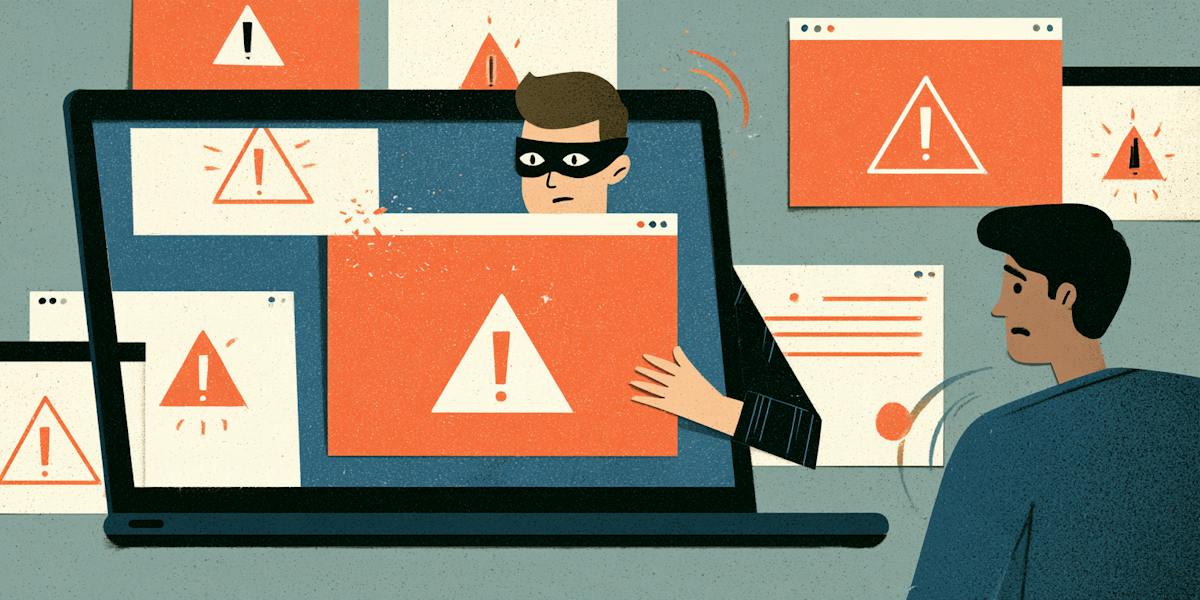
You’re halfway through reading an article when your screen suddenly turns red. A message flashes that your device is infected and your data is at risk, a loud alarm starts playing, and there’s a phone number to call right now. It’s scary, and it’s meant to be.
These pop-ups are built to scare you into acting before you have a chance to think. The sections below explain how to tell a real security warning from a fake one, what to do when one appears, and how to protect yourself if you’ve already called or paid. Fake warnings often claim to have found malware, and knowing how they work is one of the most useful everyday online safety tips to have on hand.
Key takeaways
- A pop-up that tells you to call a number for help is one of the most common tech support scam tactics.
- Real security alerts come from software you installed, not from a website you happened to be visiting.
- Alarms, countdown timers, and screens that won’t close are all designed to make you panic.
- Don’t call, click, download, or pay, and never give a stranger remote access to your device.
- Closing the browser or restarting your device usually gets rid of the pop-up.
- If you already called or paid, secure your accounts, contact your bank, and report what happened.
Are pop-up virus warnings real?
Some security alerts are real, such as a warning from software you installed. But a pop-up on a website that says your device is infected and tells you to call a number is almost certainly a scam. The FTC describes this exact setup, with a message in a window warning of a security issue and telling you to call a phone number for help, as a tech support scam tactic.1
What fake virus warnings look like
A phone number to call. The message urges you to call “support” immediately.
Fear and urgency. Red screens, countdown timers, and claims that your data is being stolen are all meant to rush you.
Alarms or a frozen screen. The page may play a loud sound or seem impossible to close.
Big-name logos. Scammers often borrow the names and logos of well-known tech companies to look official.
Pressure to download or pay. You may be pushed to download “cleaning” software or buy a fix on the spot.
It showed up in your browser. Real security alerts come from the software on your device, not from a website.
What to do when a pop-up says you’re infected
Don’t call the number or click anything inside the pop-up, including buttons that say “close” or “cancel.”
Close the window. If it won’t close, quit the browser or app, or force it to quit. If that doesn’t work, restart your device.
Keep strangers out. Never give anyone remote access to your device, and never pay with gift cards, wire transfers, or cryptocurrency.
Clean up your browser. Remove any extensions or website notification permissions you don’t recognize.
Run a scan with security software you already trust. If you don’t have any, it’s worth knowing if you need antivirus software.
Get tech support from a company you know. The FTC recommends going to a company you already know and trust if you want help with your device, not one that reached out to you through a pop-up.
Report it to the FTC and to BBB Scam Tracker².
Check a link before you open it
Fake virus warnings often wait at the end of a link in a text, an email, or an ad. OmniWatch Scam Protection helps you check a suspicious link before you open it.
Explore Scam ProtectionWhat a fake tech support scam can cost you
If you call the number, the person on the other end will usually try to get something from you, like remote access to your device, your payment details, or gift cards. Once they have remote access, they can look through your accounts and even install real malware. The “fix” they sell can be expensive, and any personal information you share can be used for follow-up scams later.
What If You Already Called or Paid?
Try to act quickly, but stay calm. Most of the damage can be limited if you move through these steps.
Hang up, and don’t answer if they call back.
Cut off their access. Uninstall any software they asked you to download, and disconnect from the internet if you can.
Change your passwords from a separate device you know is safe, starting with your email and financial accounts, and turn on two-factor authentication.
Call your bank or card issuer using the number on the back of your card if you paid or shared your card details.
Scan your device, and follow the steps to remove malware if anything turns up.
Check your accounts closely for charges, logins, or changes you don’t recognize.
Report it to the FTC. If you shared your Social Security number or other ID, learn how to report identity theft as well.
Pop-ups aren’t the only way scammers pose as tech support. Many search for victims through fake customer service numbers, and if your phone has been acting strangely since, it’s worth knowing the signs your phone is hacked.
How to avoid fake virus pop-ups
A few simple habits make these warnings much less likely to show up. Keep your browser and operating system updated, turn on a pop-up or ad-blocking setting you trust, and stay away from unfamiliar download sites. When a website you don’t know asks to send you notifications, it’s safest to say no. And skip links in unexpected texts and emails, since they can lead to pages built to display these fake warnings.
Check a suspicious link with OmniWatch
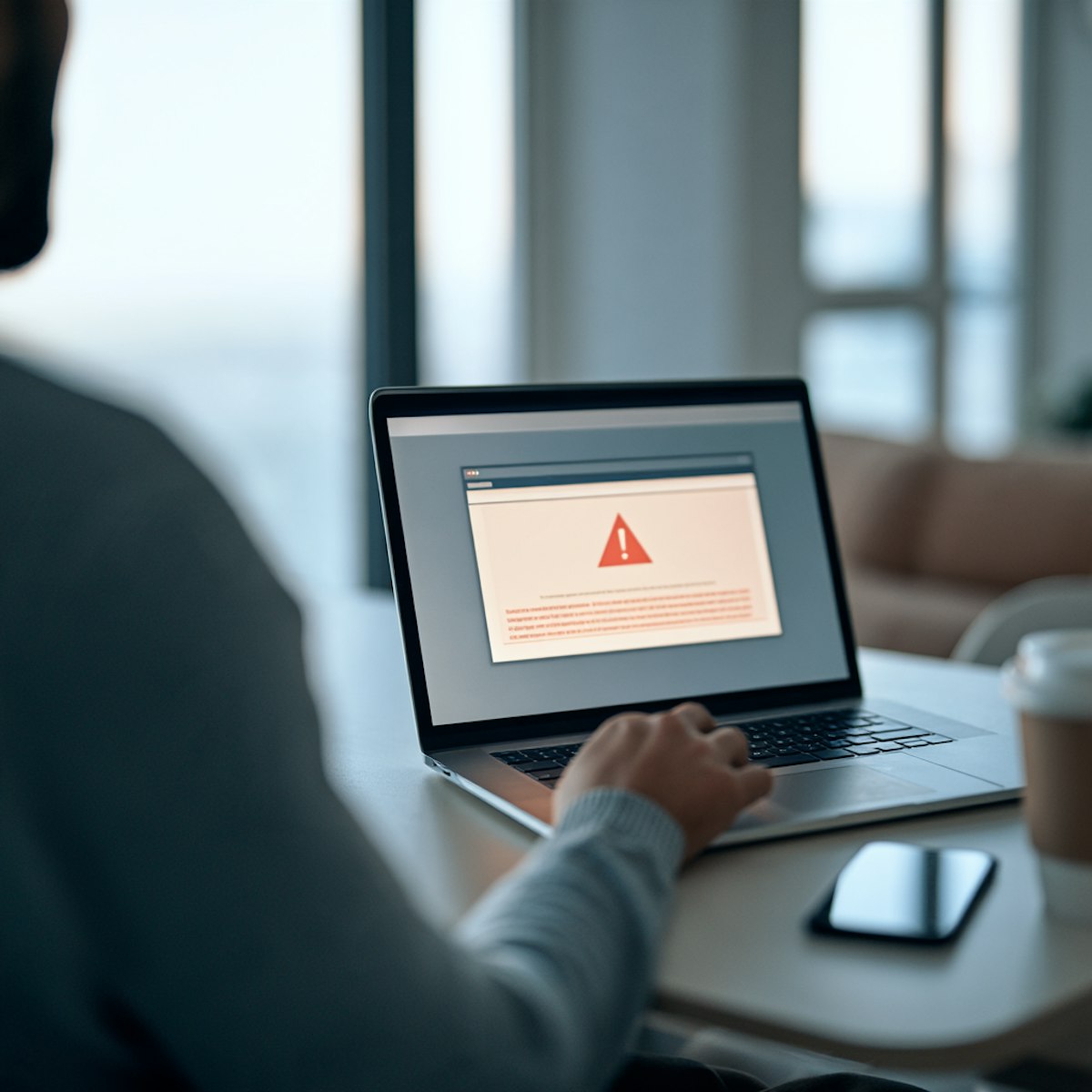
Fake virus warnings rarely appear out of nowhere. They’re often waiting at the end of a link from a text, an email, or a sketchy ad. If a link like that makes you uneasy, OmniWatch members with scam protection can run it through the AI Scam Checker before opening it and see it labeled as likely safe, unverified, likely spam, or a scam. It can help you avoid the page in the first place, but it can’t remove malware from a device that’s already been affected.
Frequently asked questions
Is a pop-up saying my computer has a virus real?
Probably not. A pop-up on a website that says your device is infected and tells you to call a number matches the tech support scam the FTC describes. Don't call or click. Close it, restart if needed, and scan with security software you already trust.
Why won't the virus warning go away?
Scam pages often try to block you from closing them with alarms, full-screen displays, or looping messages. Close the browser or app, or force it to quit. If that doesn't work, restart the device. Then clear unfamiliar extensions and notification permissions and run a scan.
Should I call the number on a virus warning?
No. Calling puts you in touch with the scammer. They may ask for remote access, payment details, or gift cards. If you want tech support, go to a company you know and trust through its official website or app, not through a pop-up.
What if I clicked on a fake virus pop-up?
Don't enter details or download anything. If you did download or install something, disconnect from the internet, run a security scan, remove unfamiliar programs, and change your passwords from a clean device.
How do I report a tech support scam?
Report it to the FTC at ReportFraud.ftc.gov. You can also use BBB Scam Tracker. If you paid, contact your card issuer or bank right away using the number on your card, and change your passwords. Reports help investigators identify scams and warn others.

This guide is published by OmniWatch, an identity and scam protection company. Follow OmniWatch on LinkedIn for ongoing guidance on identity protection and digital safety.
Sources
1. Federal Trade Commission, "Spotting and Avoiding Tech Support Scams". https://www.ftc.gov/techsupportscams
2. Better Business Bureau, BBB Scam Tracker. https://www.bbb.org/scamtracker