
 Call us at (877) 892-8249

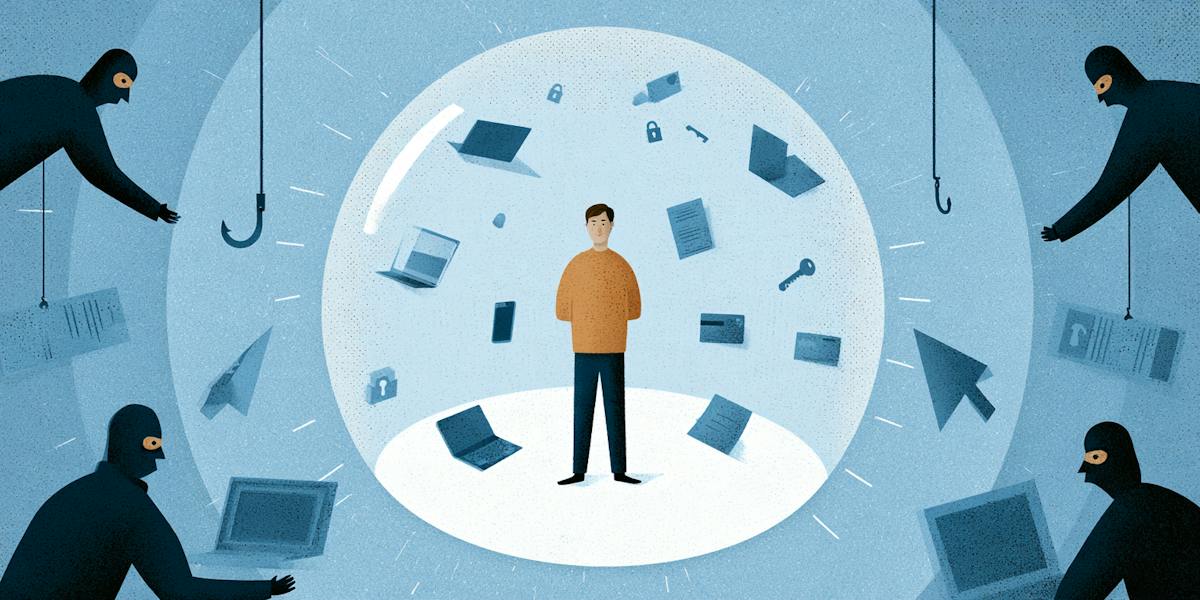
Your phone buzzes with a text saying a package couldn’t be delivered, and there’s a link to reschedule. You weren’t expecting anything, but it’s the holidays, so who knows. Most of us have been in that exact spot, and the choice we make in the next few seconds is usually what decides whether a scammer gets anywhere.
That’s really what online safety comes down to. It’s not about memorizing every type of attack or buying the most expensive security software. It’s about building a few simple habits that protect your devices, your accounts, and your identity, and knowing what to do when something feels off. Each section ahead focuses on one of those areas and points you to more detailed help if you need it.
Key takeaways
- Most online attacks only work if you click a link, download something, or reuse a password, so your everyday habits matter more than any single app or gadget.
- Updates, long and unique passwords, and two-factor authentication protect you from a surprising number of common threats.
- Your email account deserves extra protection, since anyone who gets into it can reset the passwords to almost everything else.
- Malware, ransomware, fake virus pop-ups, and phishing messages each show up a little differently, and knowing the signs helps you respond faster.
- Public Wi-Fi is convenient, but it isn’t always secure, so save banking and shopping for a network you trust.
- If you think something’s wrong, act quickly. Disconnect the device, change your passwords from a safe one, and report what happened.
What are the most important online safety tips?

If you only do ten things, do these:
Install updates. Updates fix security holes that attackers use.
Use a long, unique password for every account, and let a password manager remember them.
Turn on two-factor authentication wherever it's offered.
Pause before you click. Links and attachments in unexpected messages are a common way malware spreads.
Download from official sources. The FTC advises against using unfamiliar sites to download free music, movies, shows, or games.1
Use security software on the devices it supports.
Back up what you can't replace, so a locked or lost device isn't a disaster.
Be careful on public Wi-Fi.
Check before you pay. Gift cards, wires, and unusual links are payment red flags.
Report problems. Reports help investigators spot patterns.
How exposed is your personal information?
Take our free risk quiz to see where your data may be exposed online.
Take the Risk Quiz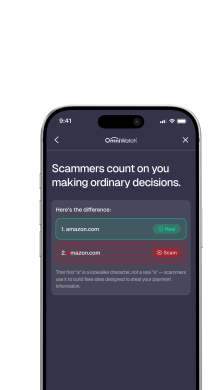
How to protect your devices
Your phone and computer hold the keys to almost everything else, from your email and bank accounts to your photos and saved passwords. Keeping them safe mostly comes down to three habits: installing updates when they come out, using security software on the devices that support it, and only downloading apps and files from sources you trust. If something already seems off, these are the questions people ask most, along with where to find more help.
How do you prevent malware in the first place?
Most malware gets onto a device because someone clicked a bad link, opened an unexpected attachment, or downloaded something from a site they didn’t know. A few everyday habits can go a long way toward stopping that, and these malware prevention tips walk through twelve of them, covering everything from viruses to spyware and ransomware.
How do you remove malware if you think you have it?
Start by running a scan with your security software. Then, from a device you know is safe, change your passwords and turn on two-factor authentication. The FTC¹ recommends that second step in case the malware gave someone access to your accounts.
Do you need antivirus software?
For most people, it’s worth having, but it can’t catch everything on its own. Antivirus software works best alongside good habits, like keeping your device updated and being careful with links. Here’s a closer look at whether you need antivirus software, including what it’s good at and where it falls short.
Could your phone be hacked?
A phone that’s suddenly slow, overheating, or burning through its battery doesn’t always mean someone’s gotten in, but it’s worth paying attention to. These ten signs can help you figure out if your phone is hacked and what to do next.
What about scary pop-ups that say you’re infected?
Many of those pop-ups are scams designed to scare you into calling a fake support number or downloading something harmful. Real security software won’t ask you to call a phone number or pay right away to fix a problem. Learn how to spot fake virus pop-up warnings and what to do if one shows up on your screen.
How to protect your accounts
Most account takeovers don’t involve any clever hacking. They start with a password that was reused on another site, easy to guess, or already exposed in a data breach. That’s why CISA² recommends making every password long, random, and unique, then letting a password manager remember them so you don’t have to. A strong password doesn’t need to be a jumble of symbols, either. A long string of unrelated words can be just as hard to crack and much easier to type.
Breaches happen more often than most people realize, and leaks like the 149 million credentials exposed in a recent data leak show how quickly stolen logins end up circulating online. If you find out your password is on the dark web, change it right away, along with any other account where you’ve used the same one.
Two-factor authentication adds another layer, so even someone with your password can’t get in without a second code. If you only turn it on in one place, make it your email. Anyone who controls your inbox can reset the passwords to nearly everything else you use.
Find out if your information has leaked
Even careful habits can't stop a company you trust from being breached. OmniWatch Dark Web Monitoring scans the dark web and known data breaches for your personal details and alerts you if they turn up.
Dark Web MonitoringHow to protect your identity
Strong passwords and updated devices keep people out of your accounts. Protecting your identity is about what happens when some of your personal information still slips through, whether through a data breach, a phishing message, or details you’ve shared online without thinking twice.
Most identity thieves don’t need much to get started.
A name, birthday, and Social Security number can be enough to open a credit card or file a tax return in your name, which is often how scammers steal identities without ever touching your devices. Because that kind of misuse can go unnoticed for months, it helps to know the early signs of identity theft, like bills for accounts you never opened, collection calls about debts that aren’t yours, or mail that suddenly stops arriving.
Prevention starts with a few simple moves. Freezing your credit at all three bureaus is free and makes it much harder for anyone to open new accounts in your name, and it’s one of the steps covered in this complete guide to preventing identity theft. Also take stock of your digital footprint, since old accounts, public profiles, and people-search listings can hand scammers the details they need to sound convincing.
Is public wi-fi safe?
Not always. The FTC³ notes that many public networks aren’t secure, so it’s best to stick to encrypted websites or a network you trust when you’re sending anything personal. The airport or coffee shop Wi-Fi you joined in a hurry may let others on the same network see more than you’d expect, including clues about how private your search history really is. That’s one reason many people use a VPN when they’re away from home, and the benefits of a VPN go beyond just public Wi-Fi.
If you’re traveling this season, get familiar with the holiday travel scams that tend to target people on the go, and what to know before you connect to public Wi-Fi at the airport or your hotel.
Threats you should know by name
You don’t need to be a security expert to stay safe online, but knowing the names of the most common threats makes them a lot easier to recognize when they show up.
What is malware, and what are its types?
Malware is any software designed to damage a device, spy on you, or steal your data. It comes in several types, including viruses that spread between files, worms that move across networks on their own, trojans that disguise themselves as useful apps, and spyware that quietly tracks what you do.
What is ransomware?
Ransomware is a kind of malware that locks your files or your entire device, then demands payment to unlock them. CISA⁴ and other federal law enforcement agencies recommend against paying, since there’s no assurance your files will actually be restored. Understanding how ransomware works makes it easier to spot early, and keeping regular backups means you won’t be left without your files if it ever happens.
What are phishing, smishing, and spoofing?
All three are ways scammers trick you into handing over information or access. Phishing usually arrives as an email that looks like it’s from a company you trust, while smishing is the same trick sent by text message. Spoofing is often what makes them convincing, since it lets a scammer fake a caller ID, email address, or website so it looks like it’s coming from someone real.
Which scams start online?
Plenty of scams begin with a click and end with real money gone from your bank account. During the holidays, many of them target shoppers through fake stores, too-good-to-be-true ads, and checkout pages built to steal card details, which is why it helps to know the most common online shopping scams before you buy. Others start with a quick search for help, when a scammer’s number shows up where a company’s real support line should be, a trick behind many fake customer service number scams.
Get a second opinion before you click
When a text, email, or link is hard to judge on your own, share it with OmniWatch Scam Protection to see if it looks like a scam before you tap, reply, or pay.
Scam ProtectionWhat should you do if something goes wrong?

Stop and disconnect if a device is behaving oddly or is locked.
Change your passwords from a clean device, starting with email and financial accounts, and turn on two-factor authentication.
Run a security scan on the affected device.
Call your bank or card issuer if money or card details are involved.
Report it. Report scams and ransomware to the FTC, and report ransomware to the FBI's IC3 or CISA.5
If your identity may be at risk, follow how to report identity theft and see IdentityTheft.gov.6
Check suspicious messages and links with OmniWatch
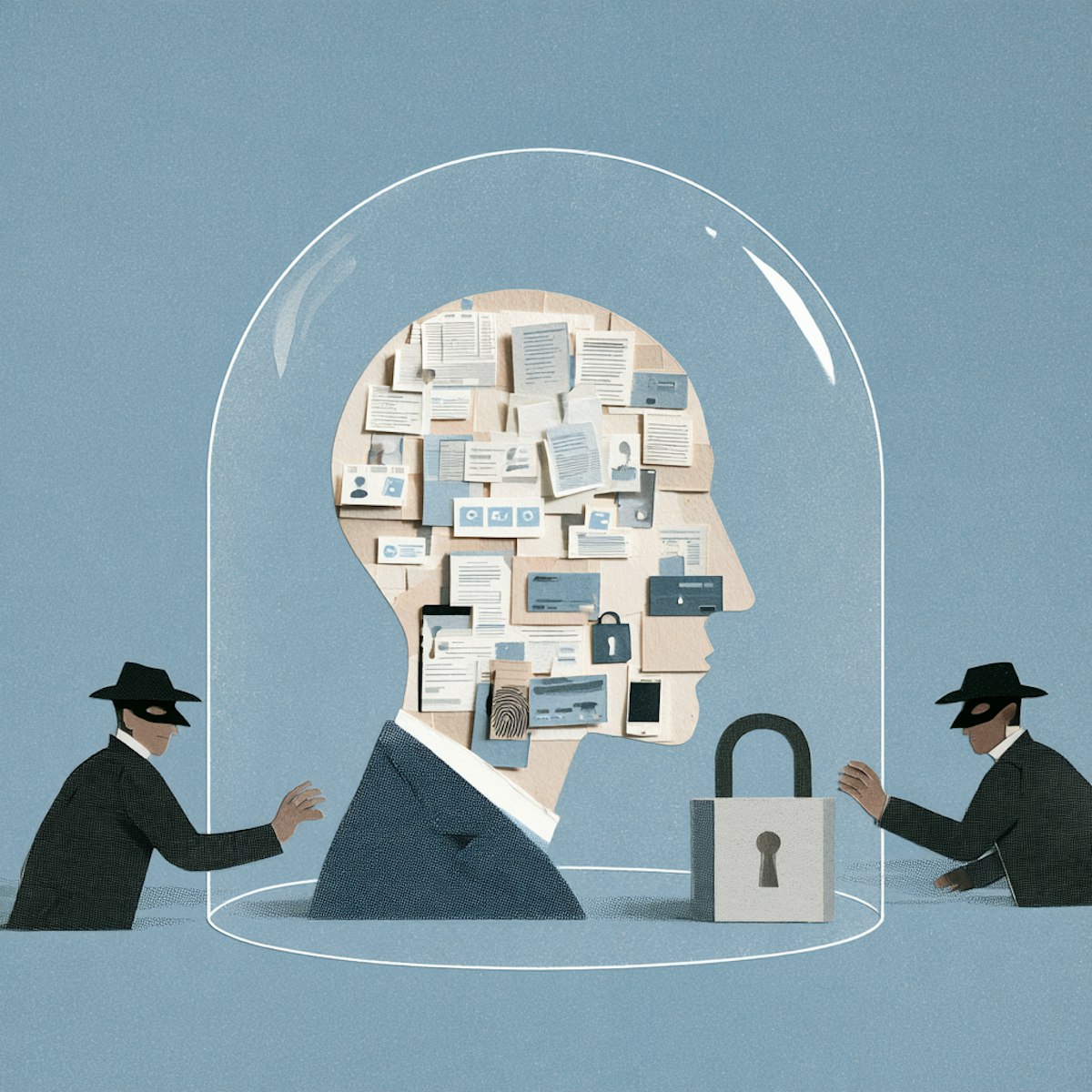
Good habits will carry you a long way online, but every so often a message lands that’s hard to judge on your own. It might be a text with a link you can’t quite place, an email that looks almost right, or a QR code taped somewhere it doesn’t seem to belong. For OmniWatch members with scam protection, the AI Scam Checker offers a second opinion. Share the text, email, link, screenshot, or QR code, and it’ll label it as likely safe, unverified, likely spam, or a scam.
Think of it as one more tool in your routine, not a replacement for it. Updates, strong passwords, and a healthy pause before you click are still what keep most threats out.
Frequently asked questions
What are the most important online safety tips?
Keep your devices updated, use long unique passwords with a password manager, turn on two-factor authentication, and be careful with links, attachments, and downloads. Back up important files, treat public Wi-Fi with caution, and report problems. These habits stop many common attacks before they start.
How do I know if my device has malware?
Common signs include unusual behavior, unexpected pop-ups, programs you didn't install, and messages sent from your accounts that you didn't write. The FTC lists several, including disabled system tools. If you suspect malware, run a security scan and change your passwords from a clean device.
Is public Wi-Fi safe to use?
Not always. The FTC notes that public Wi-Fi networks often are not secure. Avoid logging in to sensitive accounts or entering payment details on a network you don't trust, and prefer encrypted websites. A VPN can add protection for your traffic, but it does not stop malware or phishing.
Should I pay a ransomware demand?
CISA and other federal law enforcement do not recommend paying, because payment does not ensure your data will be decrypted or that you won't be targeted again. Disconnect the device, report the incident to the FBI's IC3 or CISA, and use backups if you have them.
What should I do if I think I've been hacked?
Disconnect the device if it's behaving strangely, change your passwords from a clean device, turn on two-factor authentication, and run a security scan. Contact your bank if money is involved, and report the incident at ReportFraud.ftc.gov. Watch your accounts for unfamiliar activity afterward.

This guide is published by OmniWatch. Follow OmniWatch on Facebook for ongoing guidance on identity protection, digital safety, and scam awareness.
Sources
1. Federal Trade Commission, "Malware: How To Protect Against, Detect, and Remove It". https://consumer.ftc.gov/articles/malware-how-protect-against-detect-and-remove-it
2. CISA, Secure Our World: "Use Strong Passwords". https://www.cisa.gov/secure-our-world/use-strong-passwords
3. Federal Trade Commission, tips for using public Wi-Fi networks (older release; swap for the current FTC or CISA page). https://www.ftc.gov/node/46876
4. CISA, Shields Up (guidance on ransomware payments). https://www.cisa.gov/shields-up
5. CISA, "Report Ransomware" (Stop Ransomware). https://www.cisa.gov/stopransomware/report-ransomware
6. Federal Trade Commission, IdentityTheft.gov. https://www.identitytheft.gov